
🔴 Important: Do not forget to re-enable your antivirus after installation to keep your system secure.
Windows 8 / 8.1
Temporarily Disable Windows Defender:
- Open the Control Panel.
- Go to System and Security > Action Center.
- Click Windows Defender.
- In Windows Defender, go to the Settings tab.
- Uncheck Turn on real-time protection (recommended).
- Click Save changes.
Windows 10
Temporarily Disable Windows Defender:
- Open the Start Menu and type Windows Security. Open the app.
- Click Virus & threat protection.
- Under Virus & threat protection settings, click Manage settings.
- Turn off Real-time protection.
Windows 11
Temporarily Disable Windows Defender:
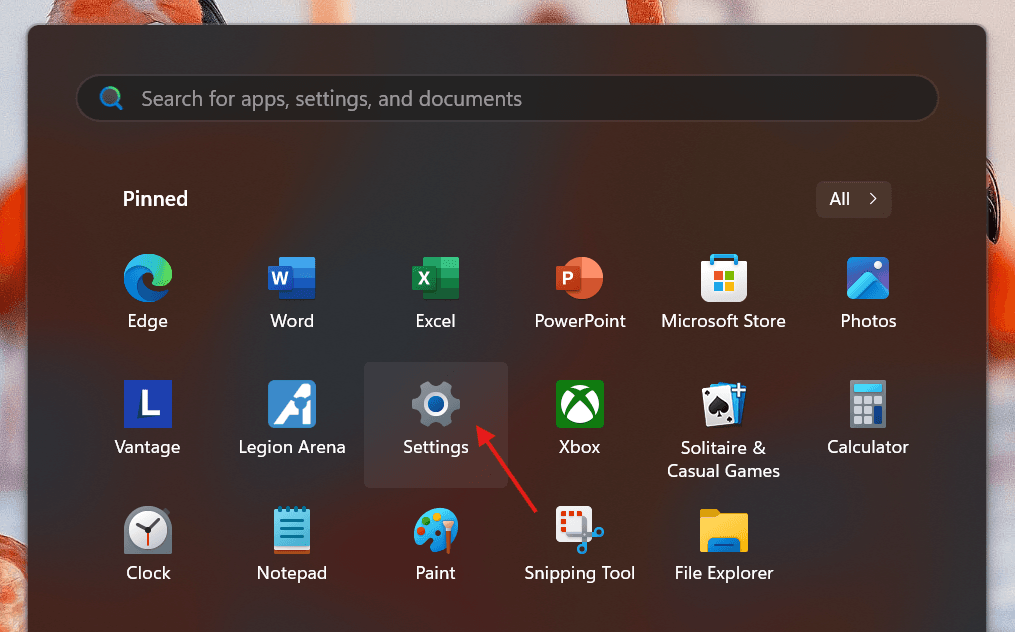
- Open the Start Menu > Settings > Privacy & security > Windows Security



- Click Virus & threat protection.
- Under Virus & threat protection settings, click Manage settings.


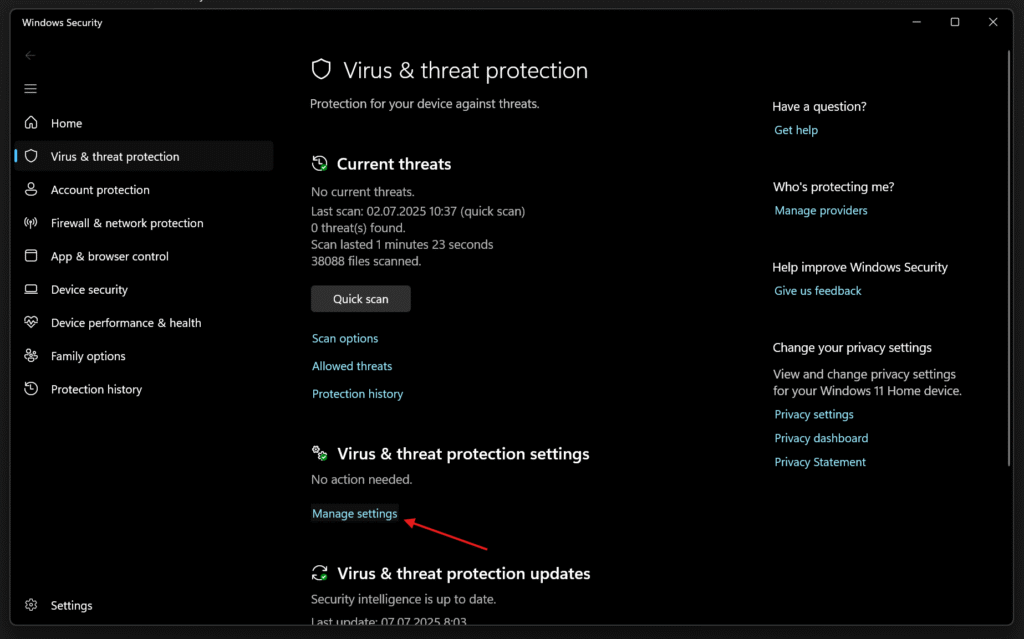
- Turn off Real-time protection.



 English
 Deutsch
 Nederlands
 Français
 Español
 Suomi
Suomi Italiano
 Dansk
Dansk Svenska